The first Runglob build is out of the workshop. Android testers are running it from Google Play right now, and while the native iPhone app is still in the oven, iPhone runners can install Runglob to their Home Screen today and get the full game — journeys, the living map, arrivals, share cards.
Here's how to join, on either phone.
First: get on the beta list
Runglob is a small private beta, so sign-in is invite-only for now. Apply with your email at runglob.com — when a spot opens we send you an approval email with your personal steps. Everything below assumes you're approved (the app will tell you, kindly, if you're not yet).
On Android: install from Google Play
Runglob is distributed through Google Play's closed testing, which means it won't appear in Play search — you join through a door we hold open for you:
- Open play.google.com/apps/testing/com.runglob.app on your phone, signed into the same Google account as the email we approved — the door only opens for invited addresses.
- Tap Become a tester.
- Tap the download it on Google Play link that appears, and install like any app.
Then sign in with your approved email and you're on the map. If the page says testing isn't available yet, that's Google still propagating the release — give it a little while and try again.
On iPhone: install the web app to your Home Screen
There's no App Store build yet — it's coming. Until then, Runglob's web app installs to your iPhone like a real app: its own icon, full screen, no browser bars. Two minutes, six steps, no App Store involved.
1. Open app.runglob.com in Safari. It has to be Safari — that's who owns the Home Screen.
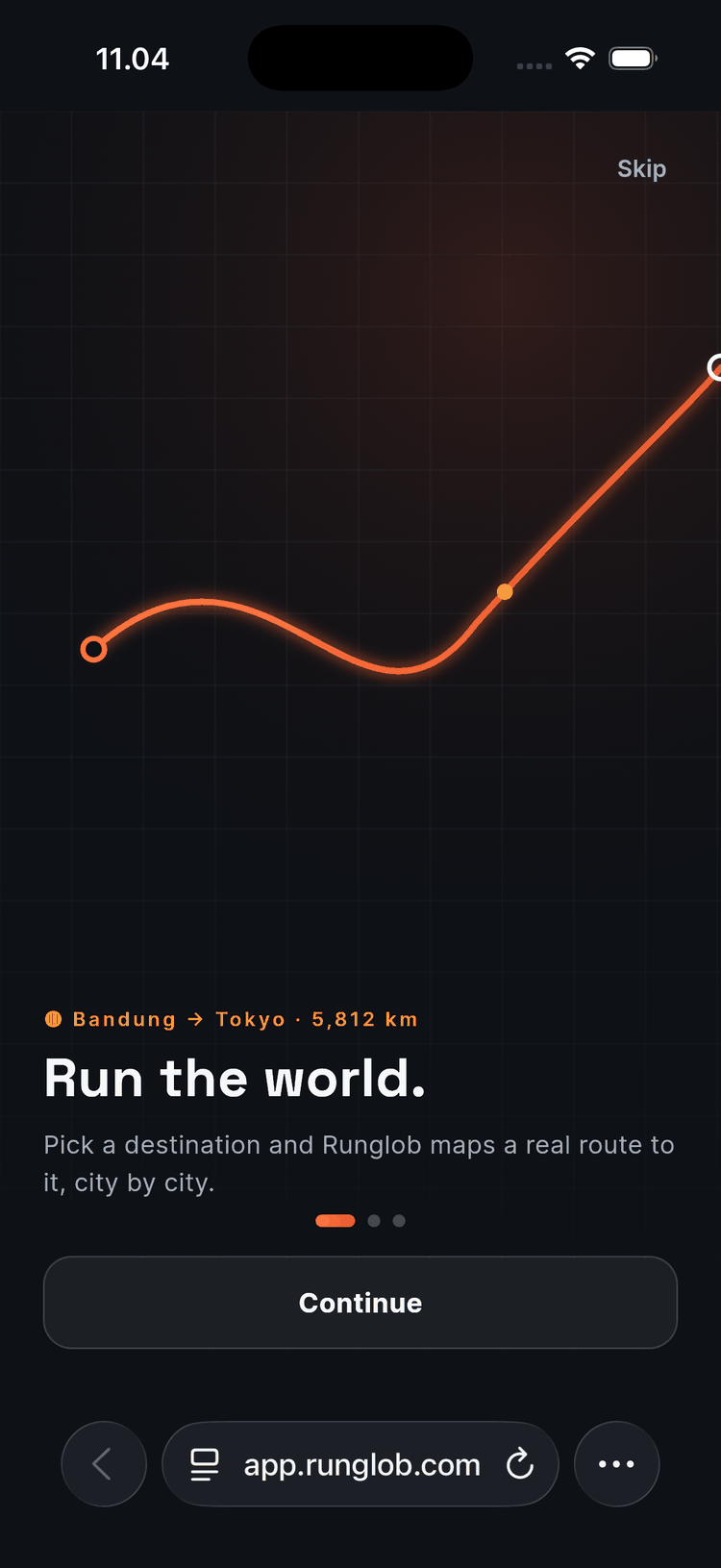
2. Tap the ⋯ button at the bottom right of Safari, then tap Share.
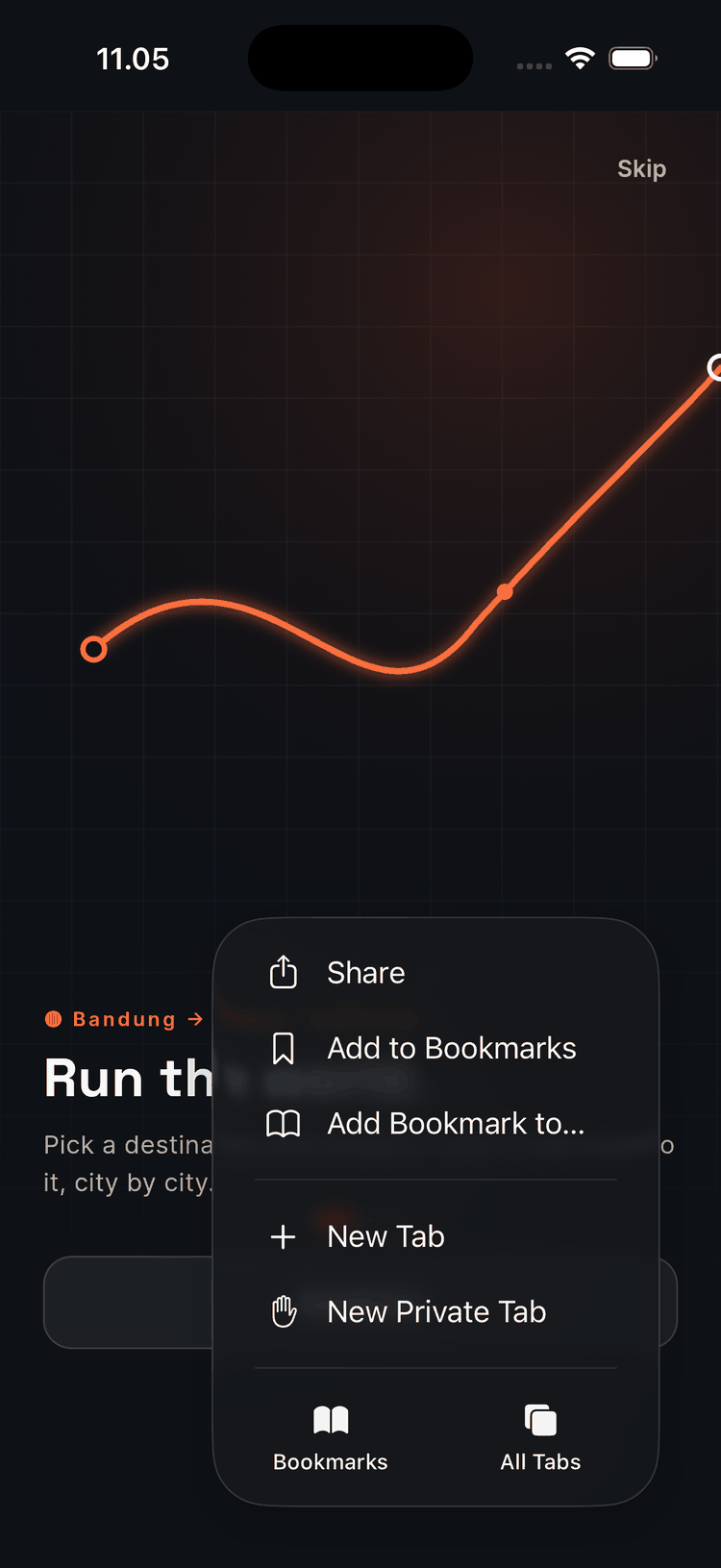
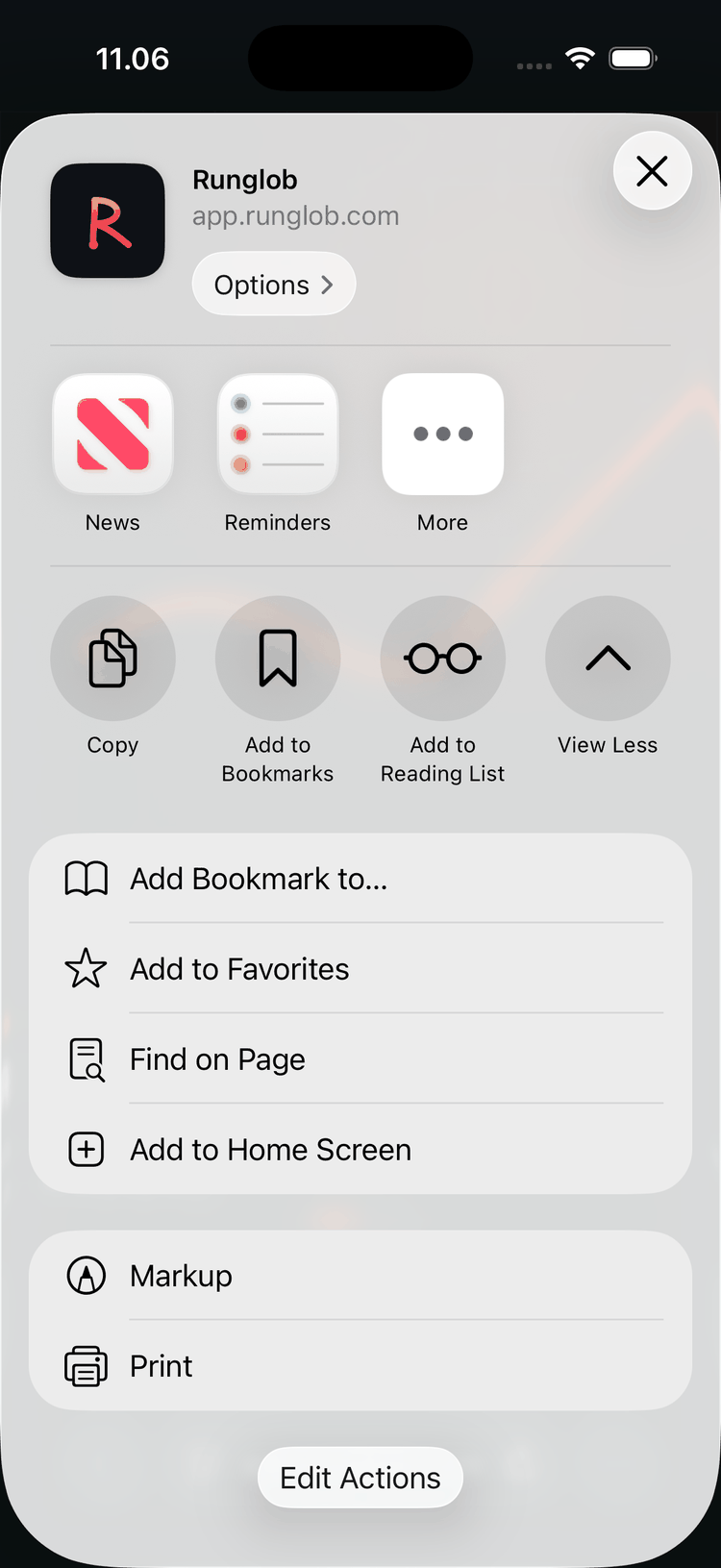
3. Tap "Add to Home Screen" — if you don't see it, tap View More first; it lives in the longer list.
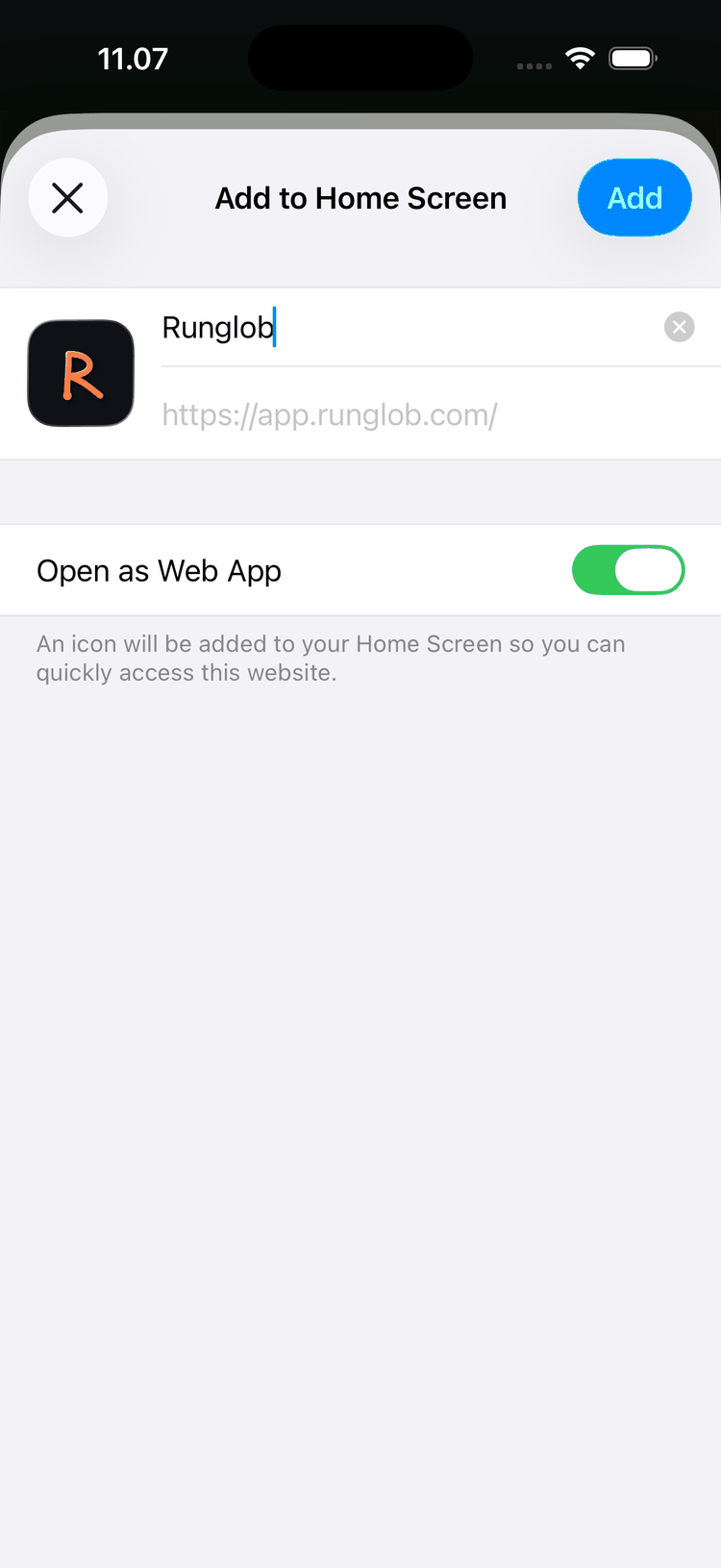
4. Keep "Open as Web App" on and tap Add. You'll see the Runglob icon and name already filled in.
5. Find the R on your Home Screen. That's Runglob now — it launches like any app.
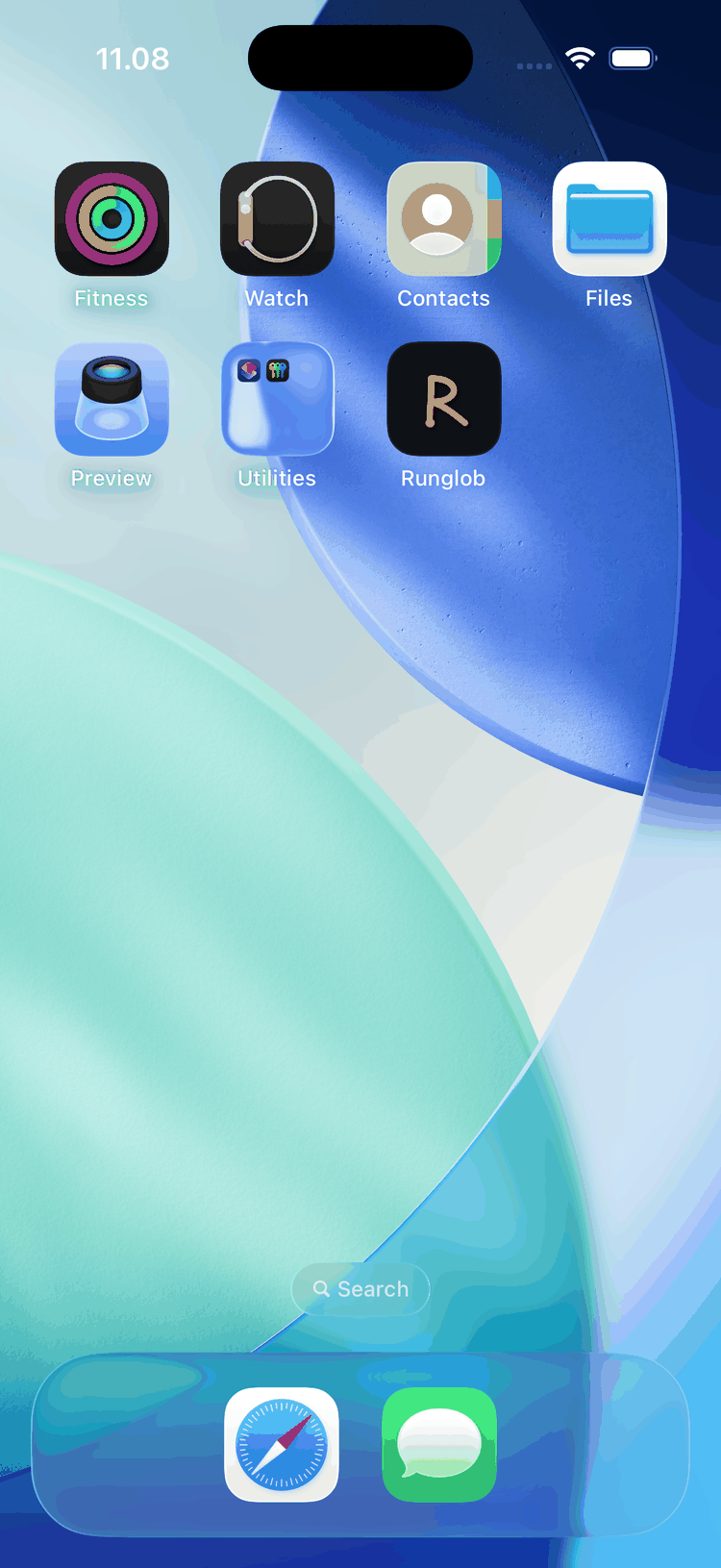
6. Open it and sign in with the 6-digit code. Type your email, tap "Send magic link", then in the app tap "Have a code? Enter it instead" and type the 6-digit code from the email we send you. That's the whole trick: the installed app is its own little world, so the code — not the emailed link — is what signs it in.
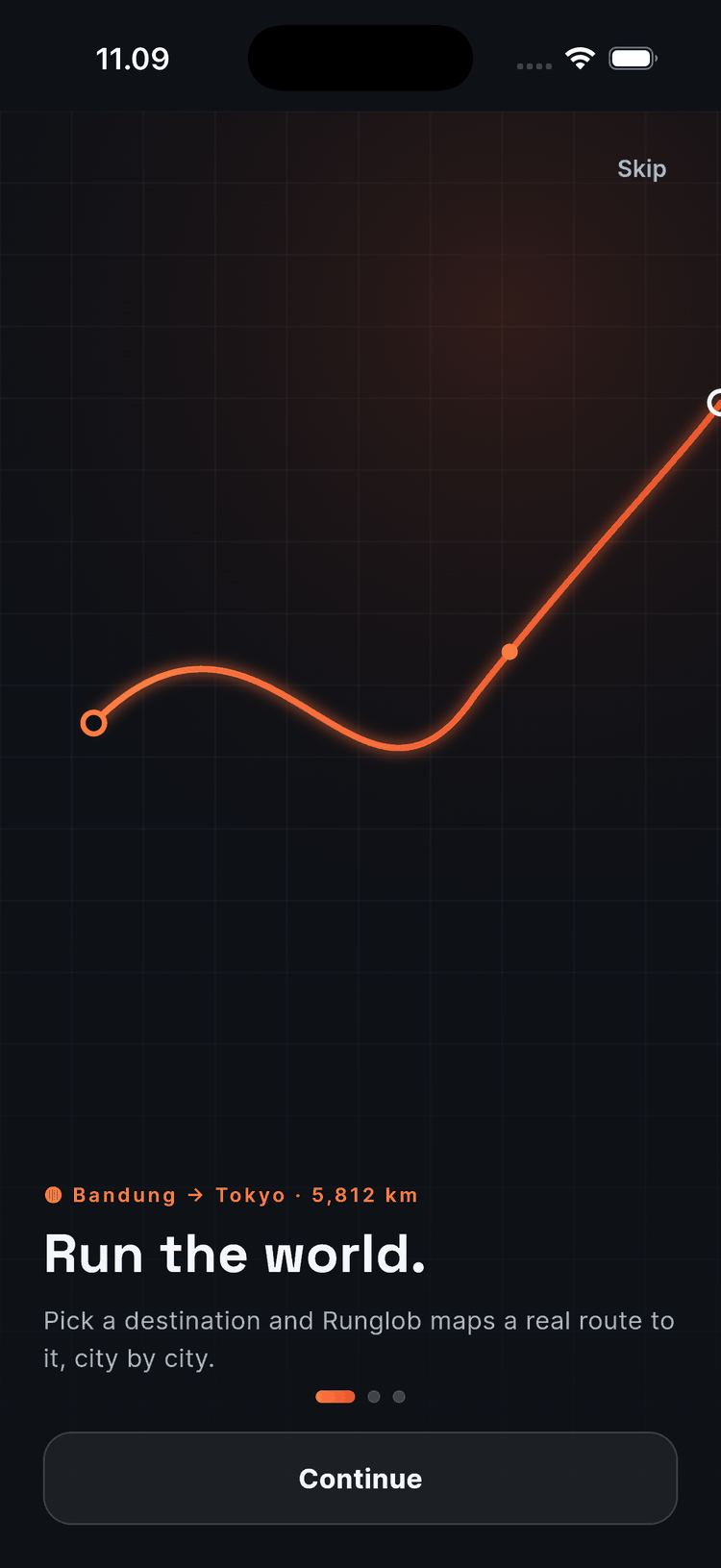
That's it. Full screen, your journey on the map, and the icon waiting next to your camera app after tomorrow's run.
The honest fine print
- The iPhone Home Screen app doesn't do push notifications yet, so arrival celebrations wait until you open it. The native iOS app will fix that.
- Strava connect, journeys, share cards — everything else works the same as Android.
- Beta means beta: things will occasionally wobble. When they do, tell us at hello@runglob.com — tester reports have already shaped this build, and the fastest way to get a fix is to describe what you saw.
Run the world, one city at a time — now from either phone.